Create Connection
Connect ekai to your data warehouse to begin the Schema Agents workflow. ekai establishes a secure, read-only connection to profile your data and generate ERDs.
Add a New Connection
- Navigate to Schema Agents in the sidebar
- Click the + Add Data Connection button
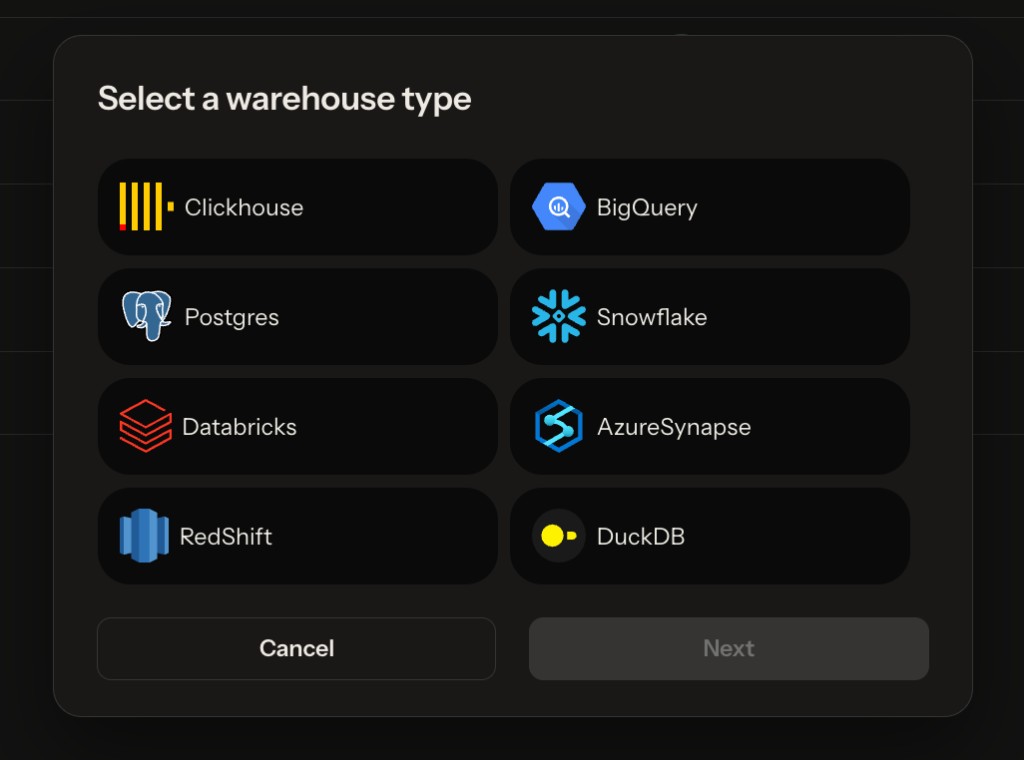
Select Your Platform
Choose your data warehouse platform:
| Platform | Status | Authentication |
|---|---|---|
| Snowflake | ✅ Available | User PAT, OAuth, Key-Pair, Native App Identity (Snowflake Native App only) |
| Databricks | ✅ Available | Personal Access Token |
| Google BigQuery | ✅ Available | Service Account JSON |
| Azure Synapse | ✅ Available | SQL Auth, Azure AD |
| PostgreSQL | ✅ Available | User/Password, SSL |
| ClickHouse | ✅ Available | User/Password, SSL |
| Amazon Redshift | ✅ Available | User/Password, SSL |
Connection Details
- Snowflake
- Databricks
- BigQuery
- Azure Synapse
- PostgreSQL
- ClickHouse
- Redshift
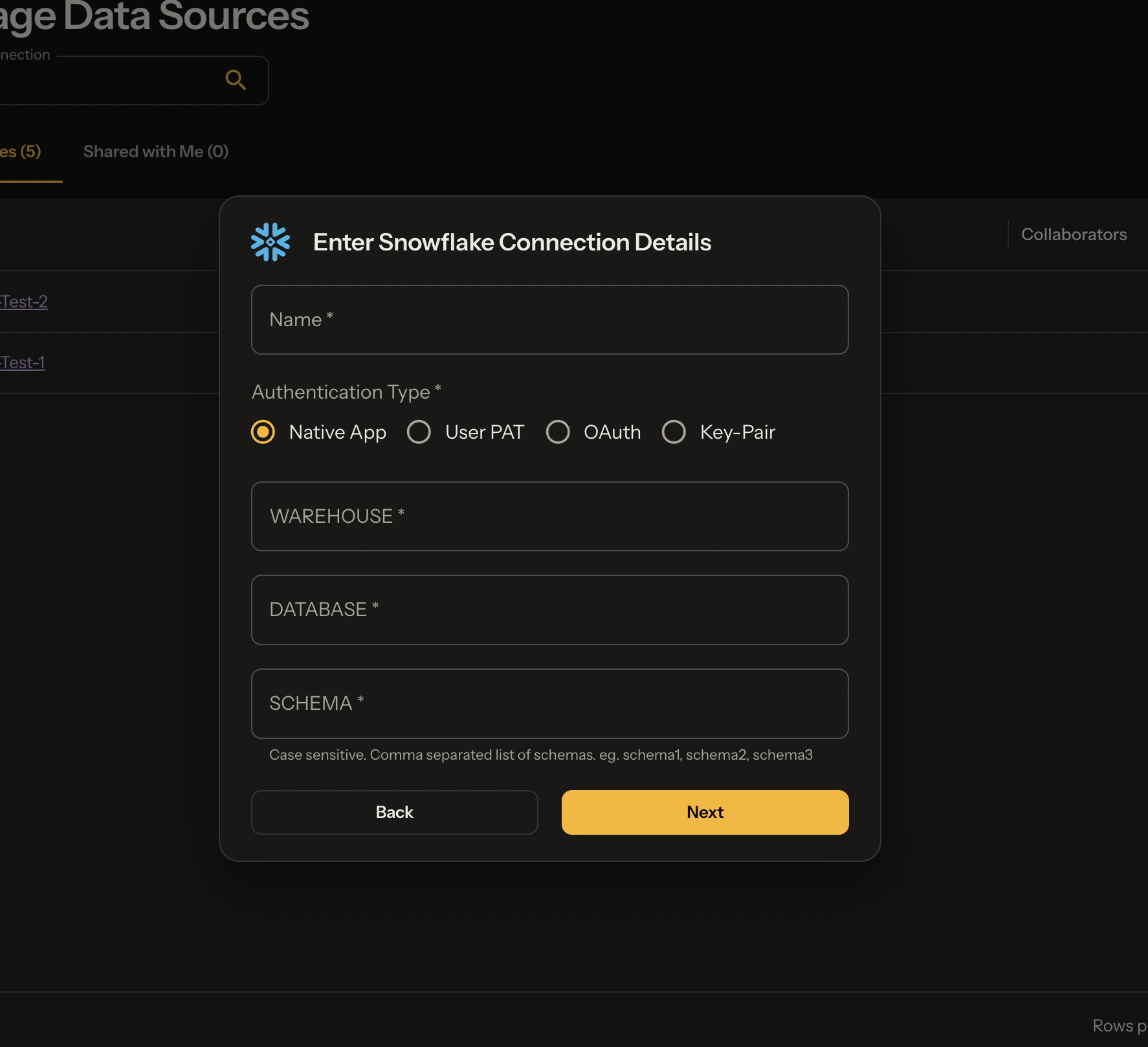
Authentication Types:
| Type | EAI Required | Use Case |
|---|---|---|
| Native App Identity | No | Snowflake Native App only - uses app identity, no credentials needed |
| User PAT | Yes | Personal Access Token authentication |
| OAuth | Yes | OAuth-based authentication |
| Key-Pair | Yes | Key-pair authentication |
Required Fields:
| Field | Description |
|---|---|
| Name | Friendly name for this connection |
| Authentication Type | Choose from Native App Identity, User PAT, OAuth, or Key-Pair |
| Account | Snowflake account identifier (not required for Native App Identity) |
| User Name | Snowflake username (not required for Native App Identity) |
| Password | Snowflake password (User PAT only) |
| WAREHOUSE | Snowflake warehouse name (Native App Identity can also use EKAI_APP_WAREHOUSE available by default) |
| DATABASE | Target database name |
| SCHEMA | Comma-separated list of schemas (case-sensitive) |
| Role | Snowflake role with read access (not required for Native App Identity) |
When using the Snowflake Native App, select Native App Identity for the simplest setup - no credentials or EAI configuration required.
Required Fields:
| Field | Description |
|---|---|
| Name | Friendly name for this connection |
| Workspace URL | Your Databricks workspace URL |
| SQL Warehouse/Cluster | Compute resource for queries |
| Catalog | Unity Catalog name |
| Schema | Target schema(s) |
| Personal Access Token | PAT for authentication |
Required Fields:
| Field | Description |
|---|---|
| Name | Friendly name for this connection |
| Project ID | GCP project ID |
| Dataset | Target dataset name |
| Service Account JSON | Upload or paste JSON key |
The service account needs BigQuery Data Viewer and BigQuery Job User roles.
Required Fields:
| Field | Description |
|---|---|
| Name | Friendly name for this connection |
| Server | Synapse server name |
| Database | Target database |
| Authentication | SQL Auth or Azure AD |
| Username/Password | Credentials |
Required Fields:
| Field | Description |
|---|---|
| Name | Friendly name for this connection |
| Host | PostgreSQL server hostname |
| Port | Connection port (default: 5432) |
| Database | Target database name |
| Schema | Target schema(s) |
| Username | Database username |
| Password | Database password |
Optional Fields:
- SSL Mode: Enable SSL for encrypted connections
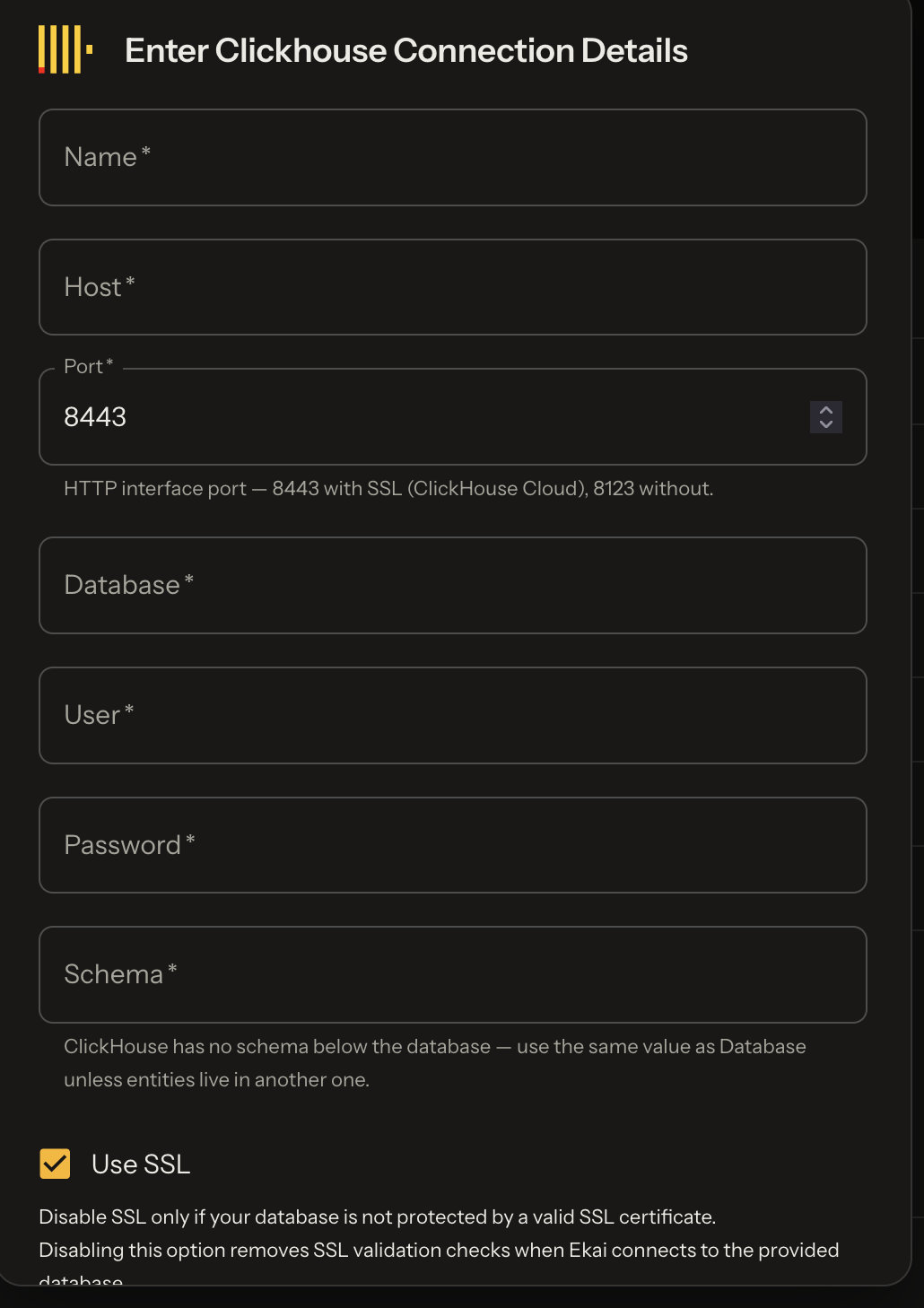
Required Fields:
| Field | Description |
|---|---|
| Name | Friendly name for this connection |
| Host | ClickHouse server hostname |
| Port | HTTP interface port (default: 8443) |
| Database | Target database name |
| User | ClickHouse username |
| Password | ClickHouse password |
| Schema | Use the same value as Database unless your entities live in another one |
Optional Fields:
- Use SSL: Enabled by default. Disable only if your database is not protected by a valid SSL certificate. Disabling removes SSL validation checks when ekai connects.
Use port 8443 with SSL (the ClickHouse Cloud default) or 8123 without SSL. ClickHouse has no schema level below the database, so the Schema field normally repeats the Database value.
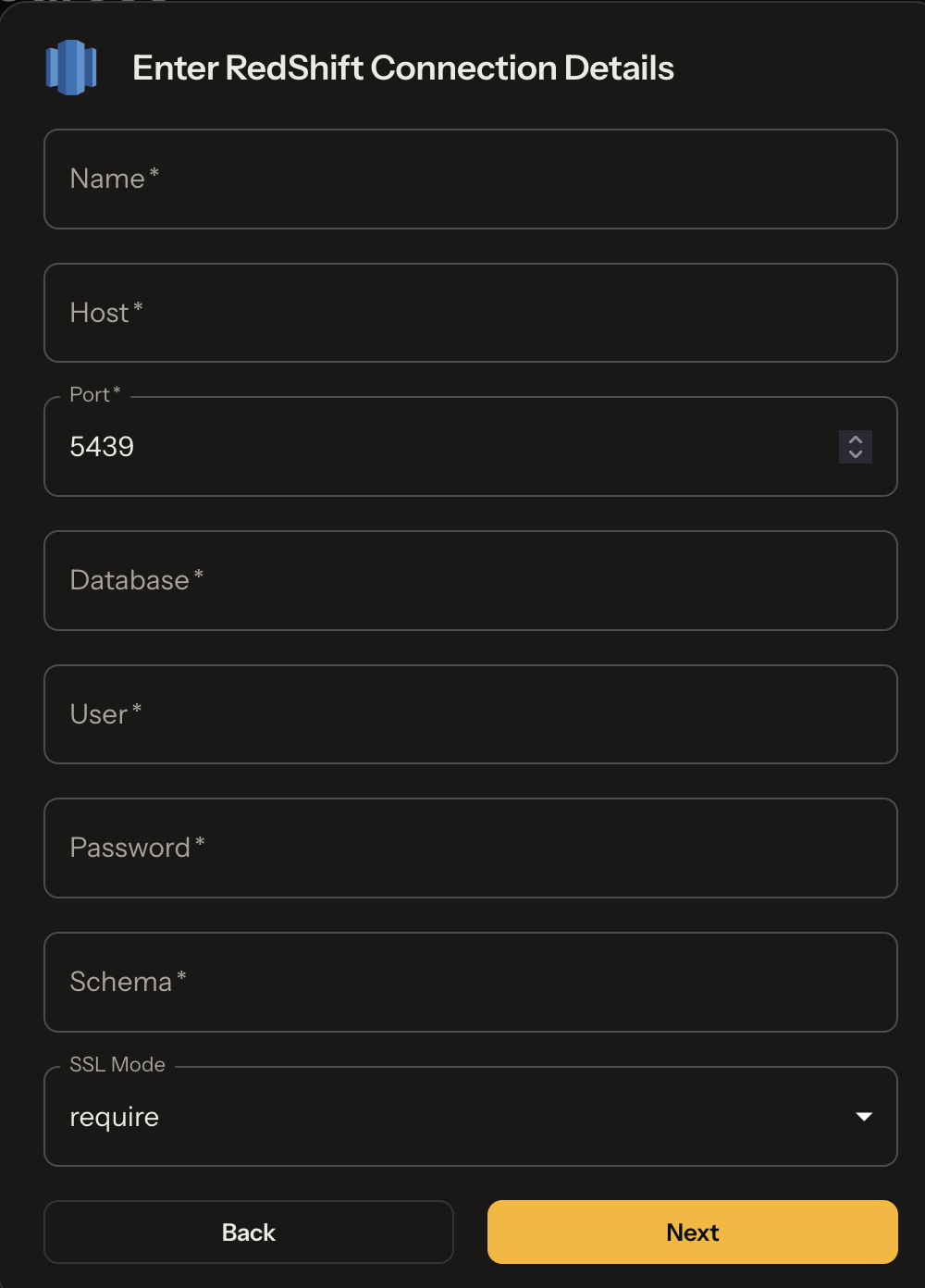
Required Fields:
| Field | Description |
|---|---|
| Name | Friendly name for this connection |
| Host | Redshift cluster or workgroup endpoint |
| Port | Connection port (default: 5439) |
| Database | Target database name |
| User | Redshift username |
| Password | Redshift password |
| Schema | Target schema(s) |
Optional Fields:
- SSL Mode: Defaults to
require. Standard modes are available:disable,allow,prefer,require,verify-ca,verify-full.
Select Tables
After entering connection details, ekai reads your schema and presents available tables:
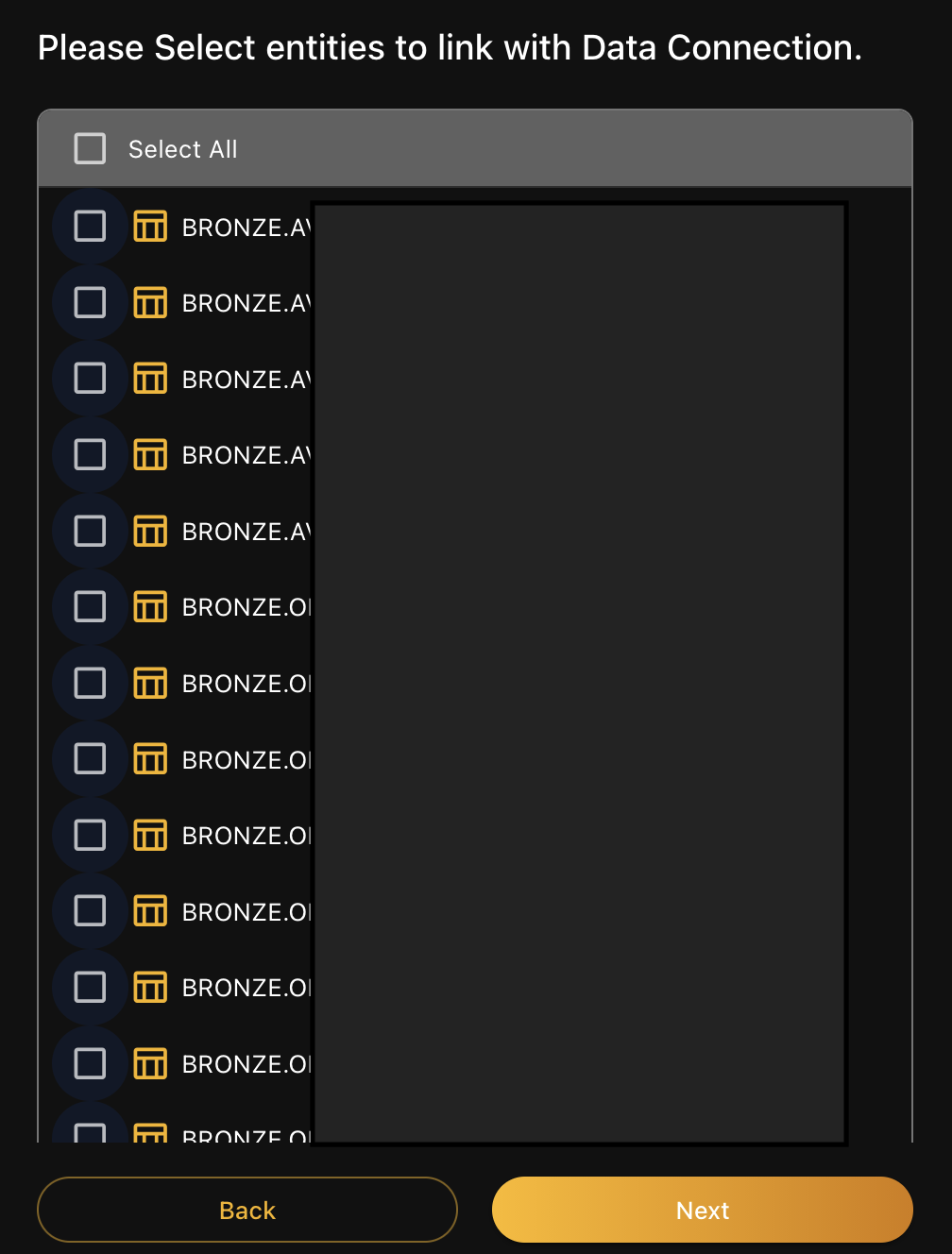
- Select All — Include all tables in analysis
- Choose specific tables — Select individual tables
- Click Next to proceed to onboarding
LLM token consumption scales with the number of tables and columns in your connection. To reduce costs, consider limiting your selection to only the tables needed for your specific use case. For most workflows, under 100 tables provides optimal cost efficiency.
Connection Established
Your connection appears in the Schema Agents list:
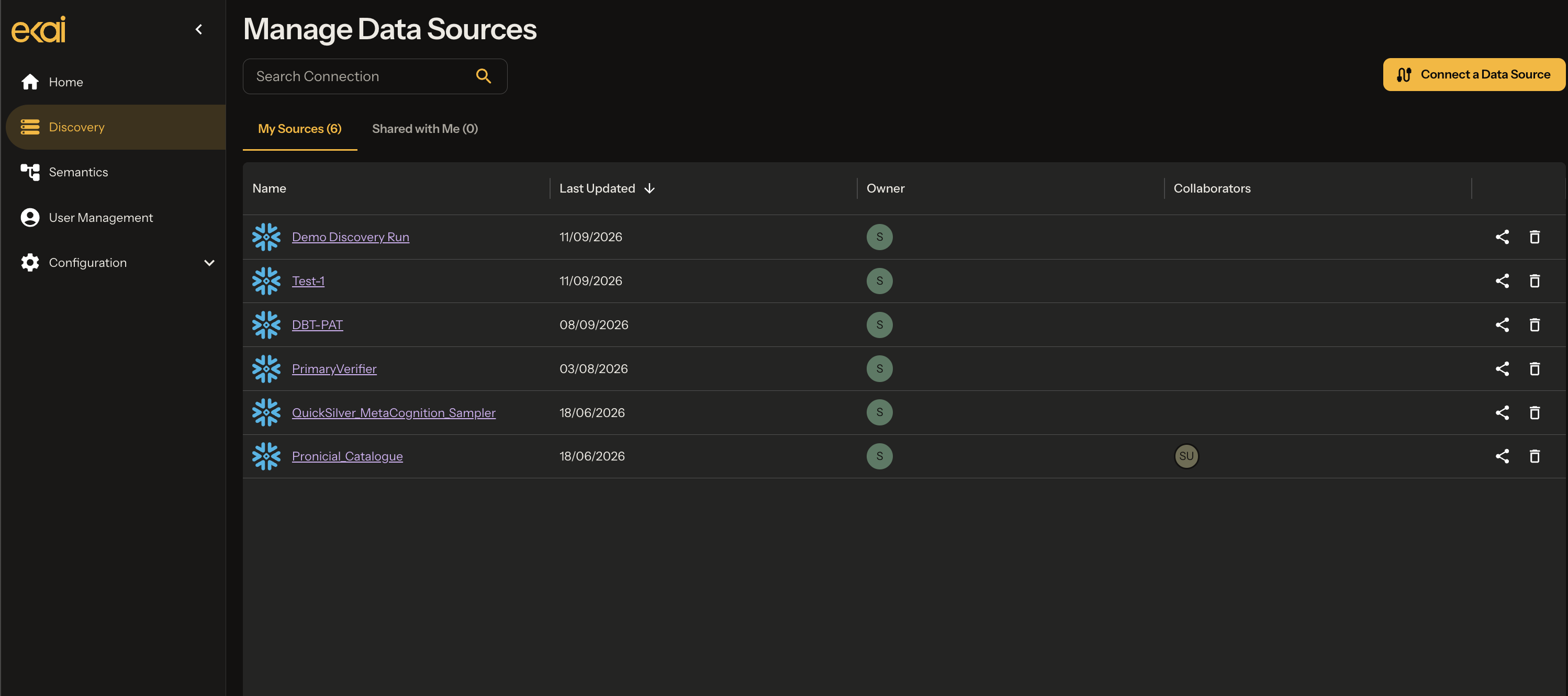
The list shows:
- Name — Connection identifier (click to open)
- Type — Source platform
- Last Updated — Most recent activity
- Created At — When connection was created
Connection Security
All connections are read-only with TLS 1.3 encryption. Raw data never leaves your warehouse—only statistical summaries are transferred.
See Security & Privacy for complete details.
Managing Connections
Edit Connection
Click on a connection name to view details. Update credentials or table selections as needed.
Delete Connection
From the connection list, select the delete action to remove a connection. This does not delete generated ERDs.
Share Connection
Use the Share button to give other users access to this connection.
Next Steps
- Onboarding Agent — AI analyzes your schema
- Statistical Profiling — Data pattern analysis