Publish
Publishing is guided entirely through the chat experience in Data Transformation — the same flow as Execute DBT. After a successful materialization, the agent asks whether to publish your semantic model to the platform tied to your data connection.
Complete Execute DBT (materialization) first. Publishing continues in the same chat.
Publishing destinations
ekai currently supports these destinations. More platforms will follow.

Snowflake Cortex Analyst
Natural-language agents on your Snowflake semantic model.

Databricks Genie
Publish into a Genie workspace for conversational analytics.

BigQuery Data Agent
Publish a Data Agent on top of your BigQuery semantics.

ClickHouse Agent
Transfers data-product artifacts; skill wired manually in ClickHouse.
Connections can span many warehouses; agent publishing today covers Snowflake, Databricks, BigQuery, and ClickHouse (with a manual skill step — see below).
BigQuery and ClickHouse use the default credentials from connection creation, so the chat may skip configuration questions that Snowflake and Databricks still ask (LLM, roles, etc.).
There is also no agent URL for BigQuery or ClickHouse in ekai — open the published agent from the platform UI yourself. Snowflake (and typically Databricks) can surface a link in chat / materializations.
After materialization
When dbt run succeeds, the agent reports materialization complete:
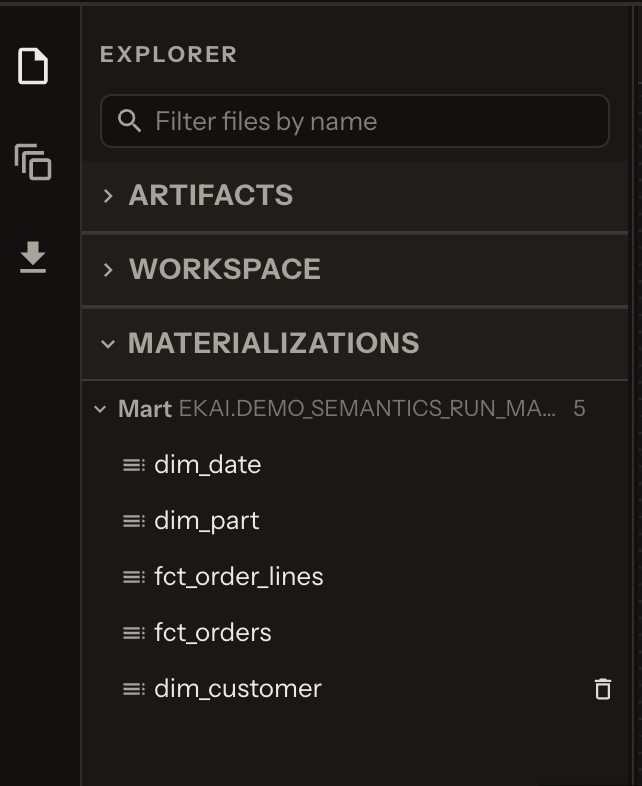
It then asks whether to proceed with publishing to the platform for your connection:
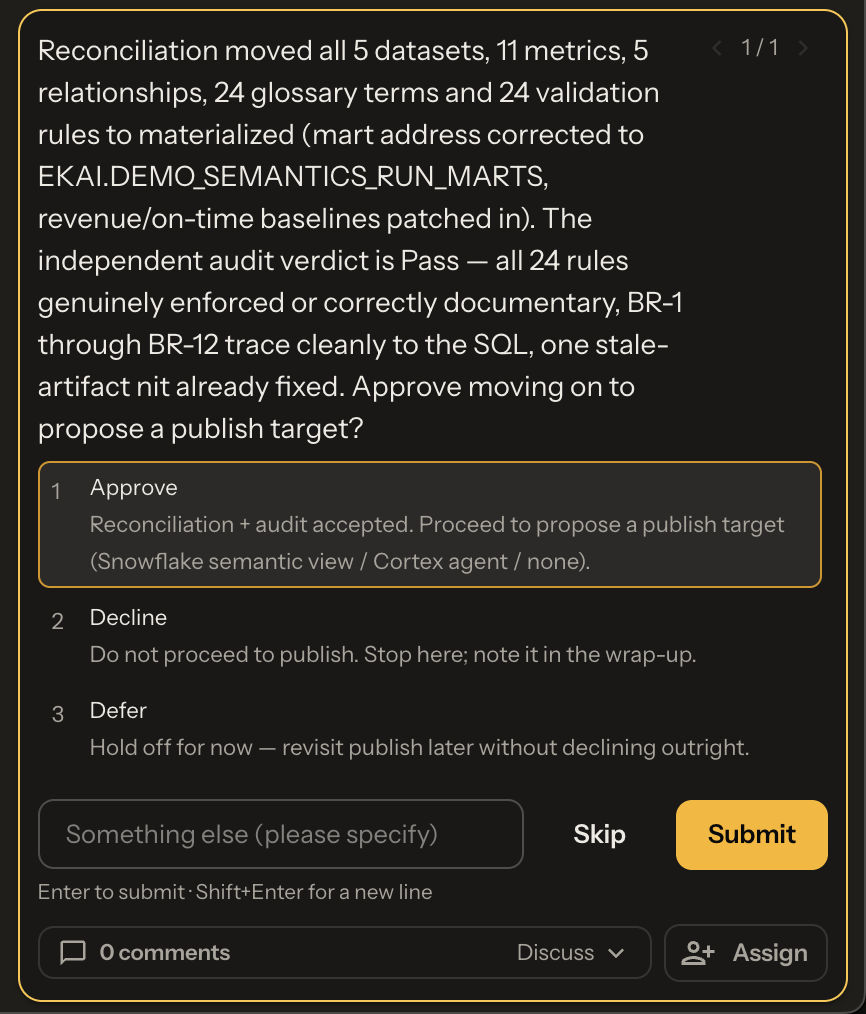
Guided publish steps
1. Specify targets
Platforms offer different paths — e.g. static catalog artifacts, semantically enriched models with validations and linkages, or natural-language agents on refined semantics. Chat lets you choose based on the connected platform and its capabilities.

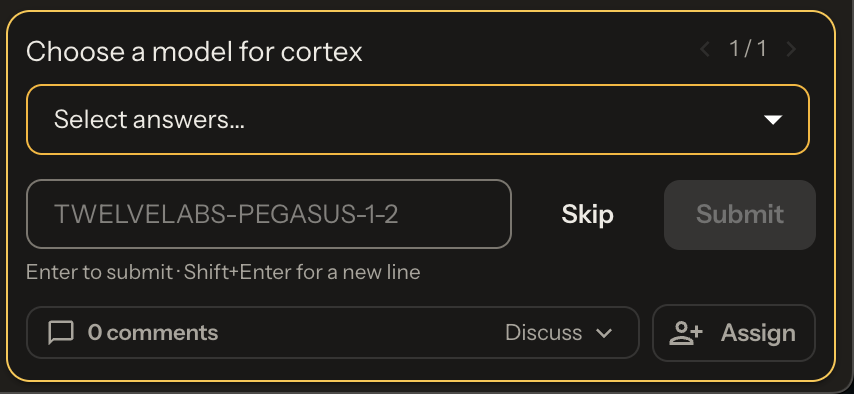
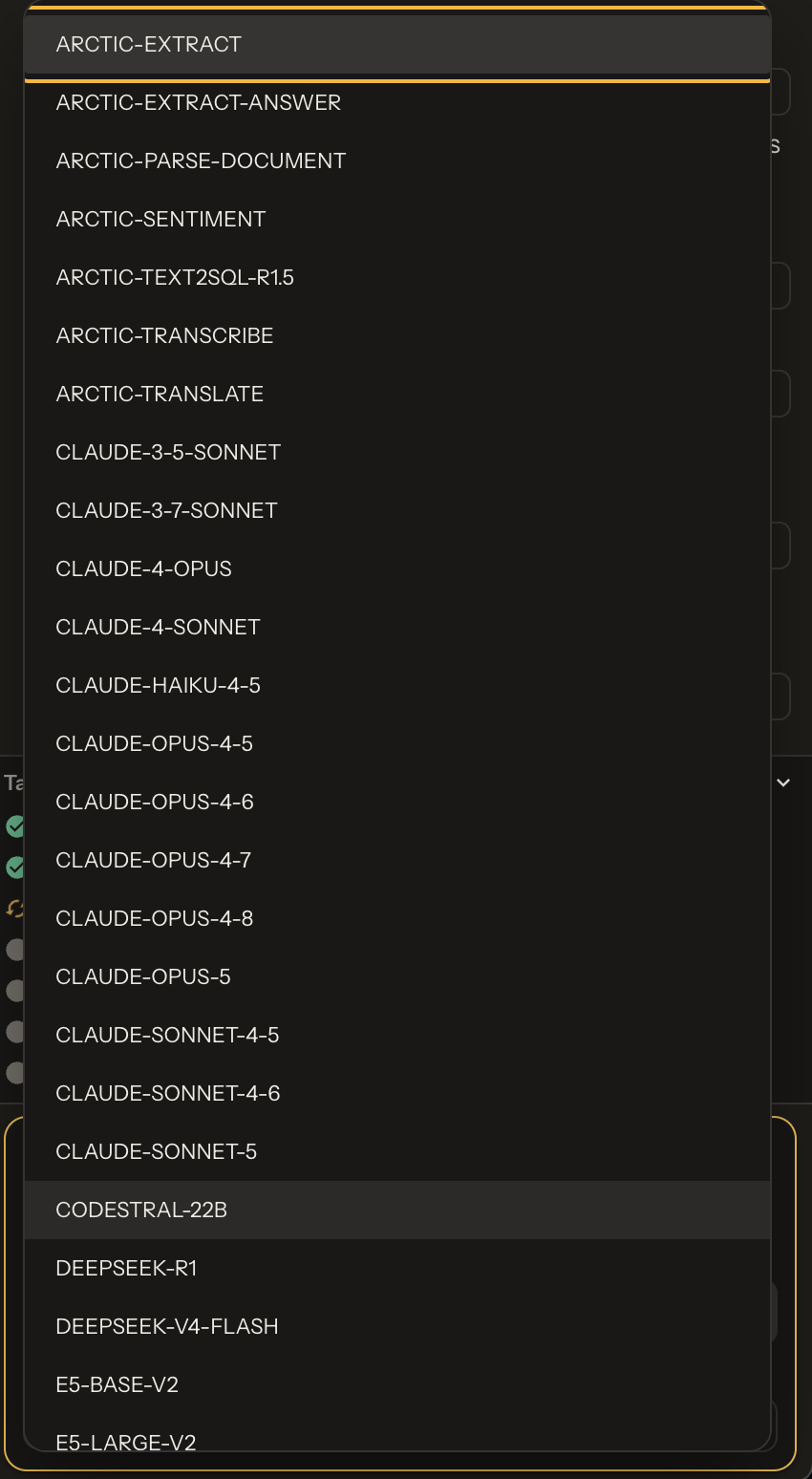
2. Specify the model / LLM
For natural-language Q&A, choose which LLM to use. Options depend on LLMs available on your platform. (Snowflake / Databricks — BigQuery and ClickHouse typically skip this when using connection defaults.)
3. Specify roles
Confirm which roles may access the published objects.
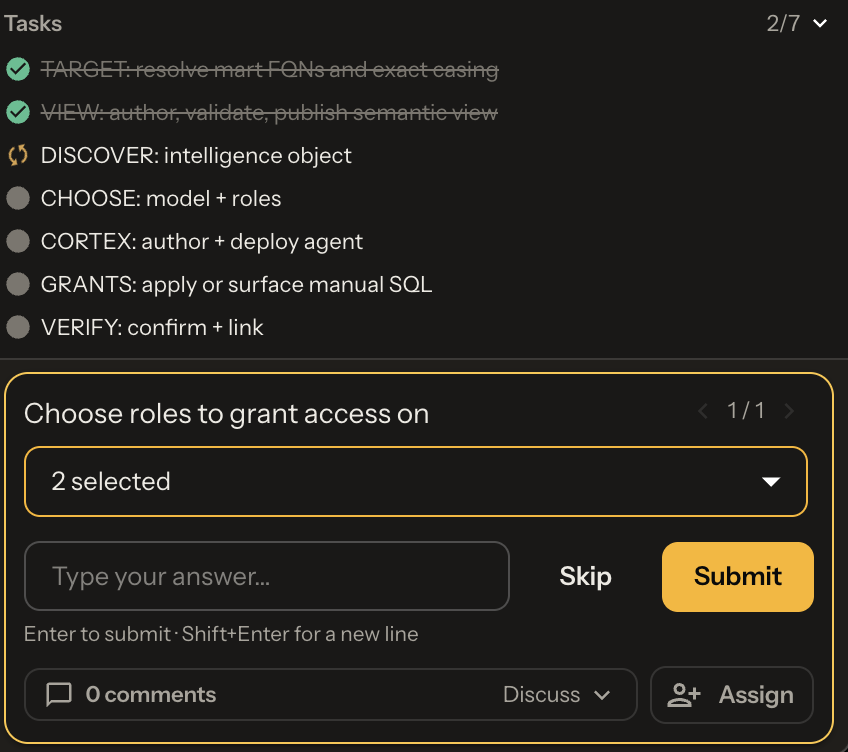
4. Review and use
Once published: the object appears under Materializations, chat may share an agent URL when the platform provides one, and a publishing icon in the artifact panel opens published objects and their configuration.
BigQuery and ClickHouse do not return an agent URL in ekai. Open the agent from your platform console. Snowflake (and typically Databricks) can show a link in chat.
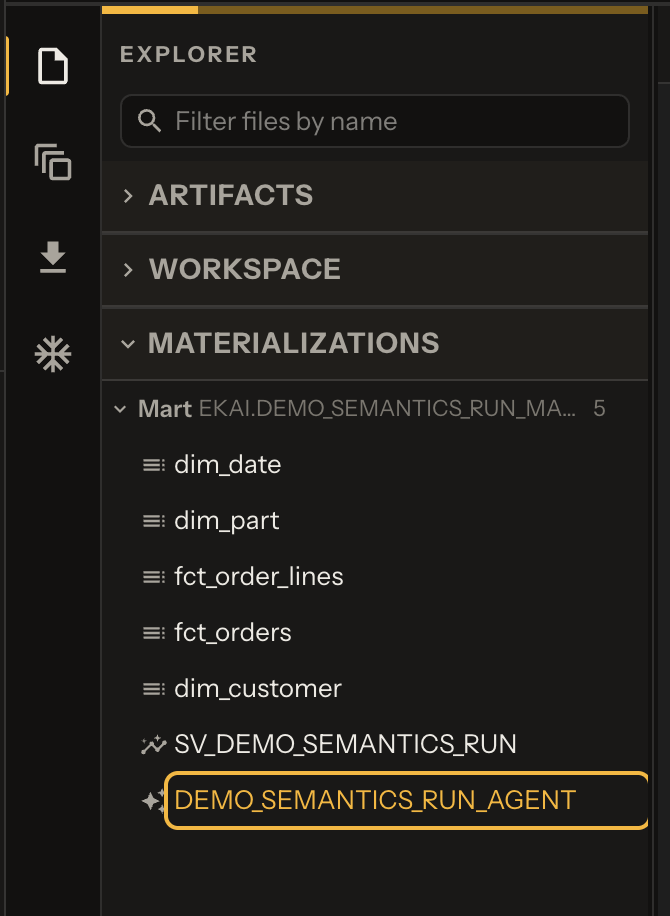
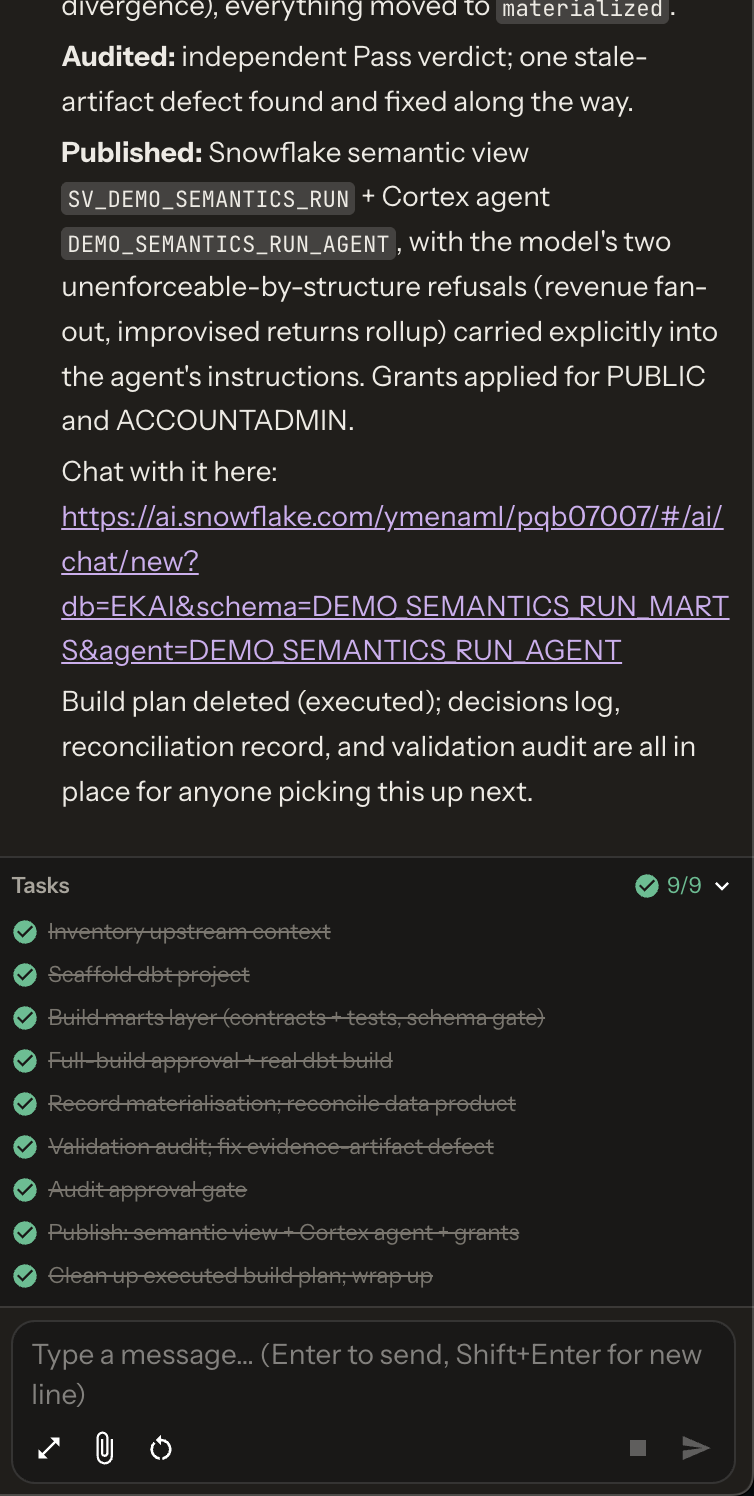
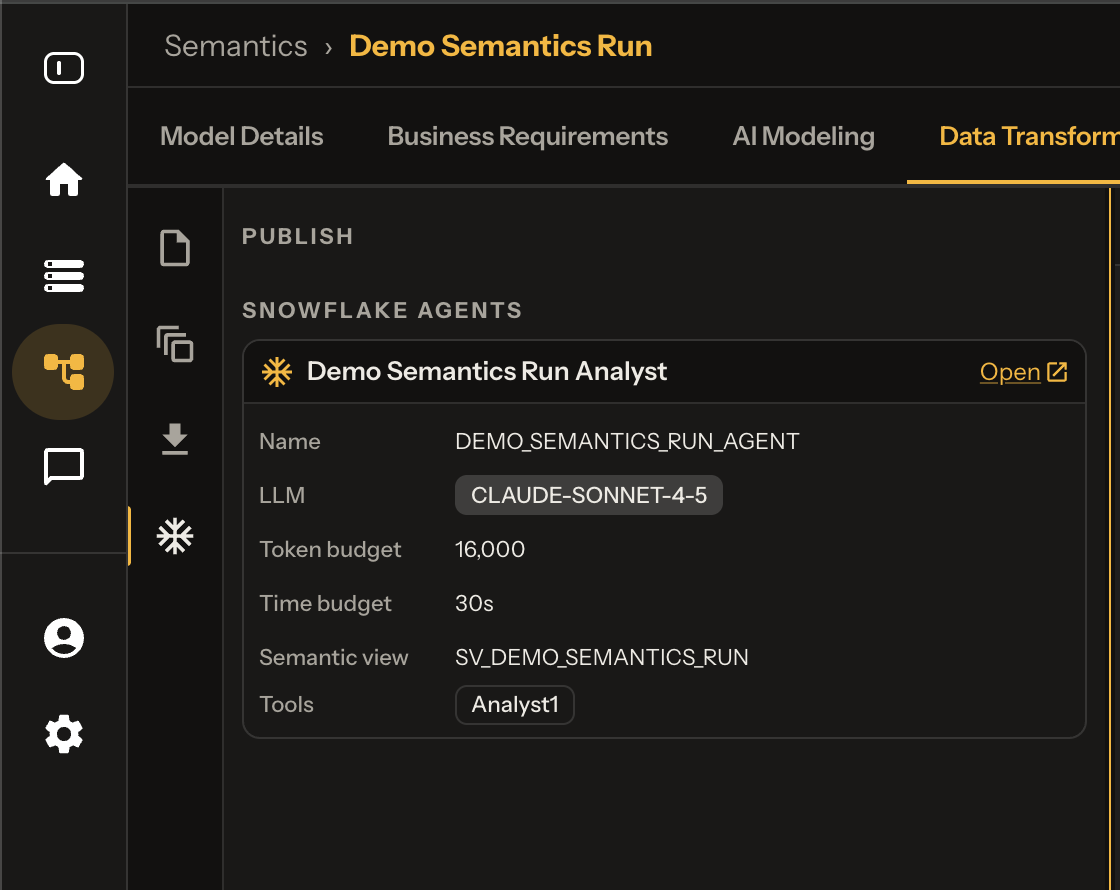
- Materializations — open the published object from the list
- Chat — copy the agent URL when the platform provides one (not BigQuery / ClickHouse)
- Artifact panel — publishing icon for quick access and config at a glance
Open on the platform
Where to find the published agent in each product UI:
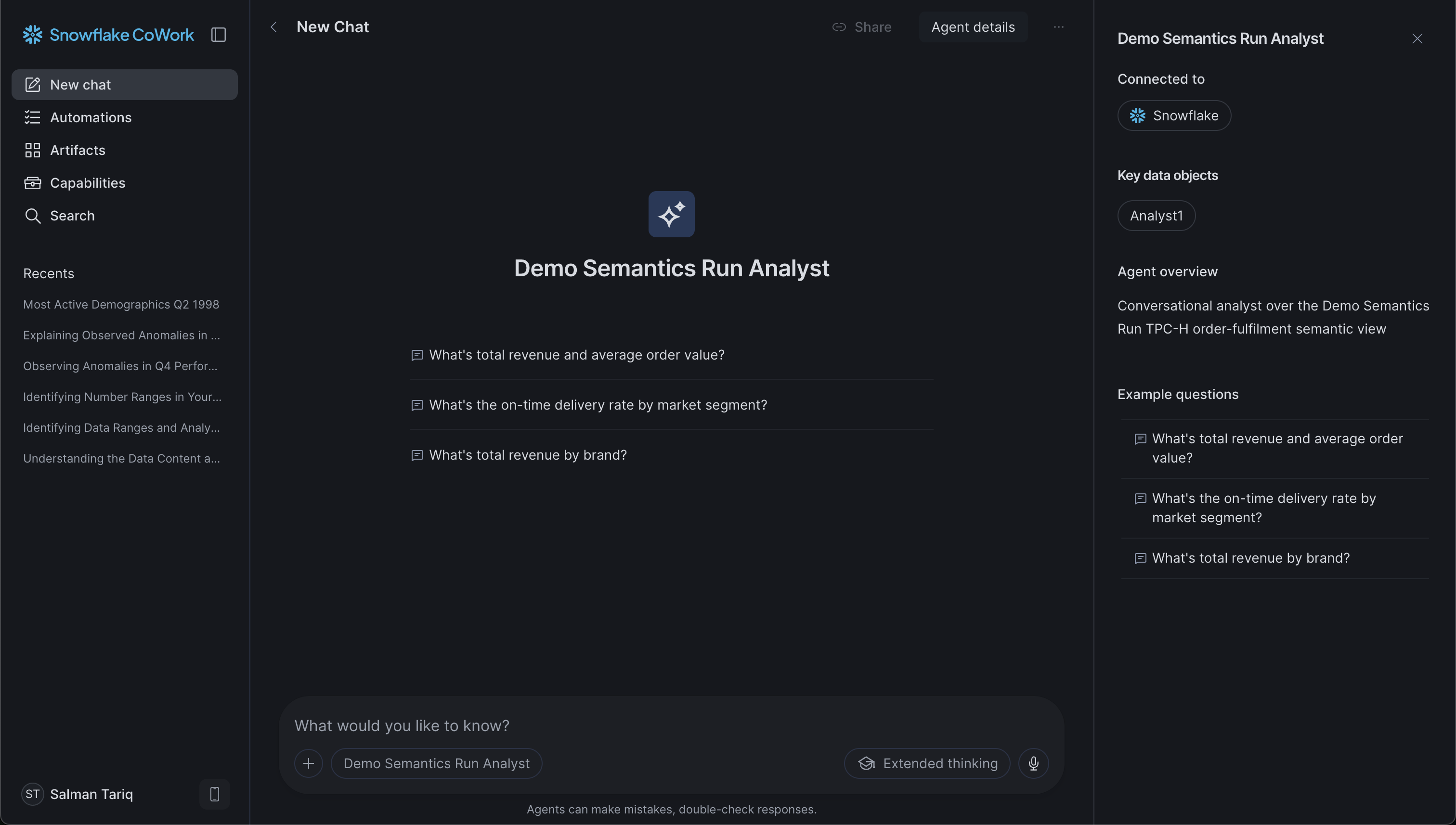
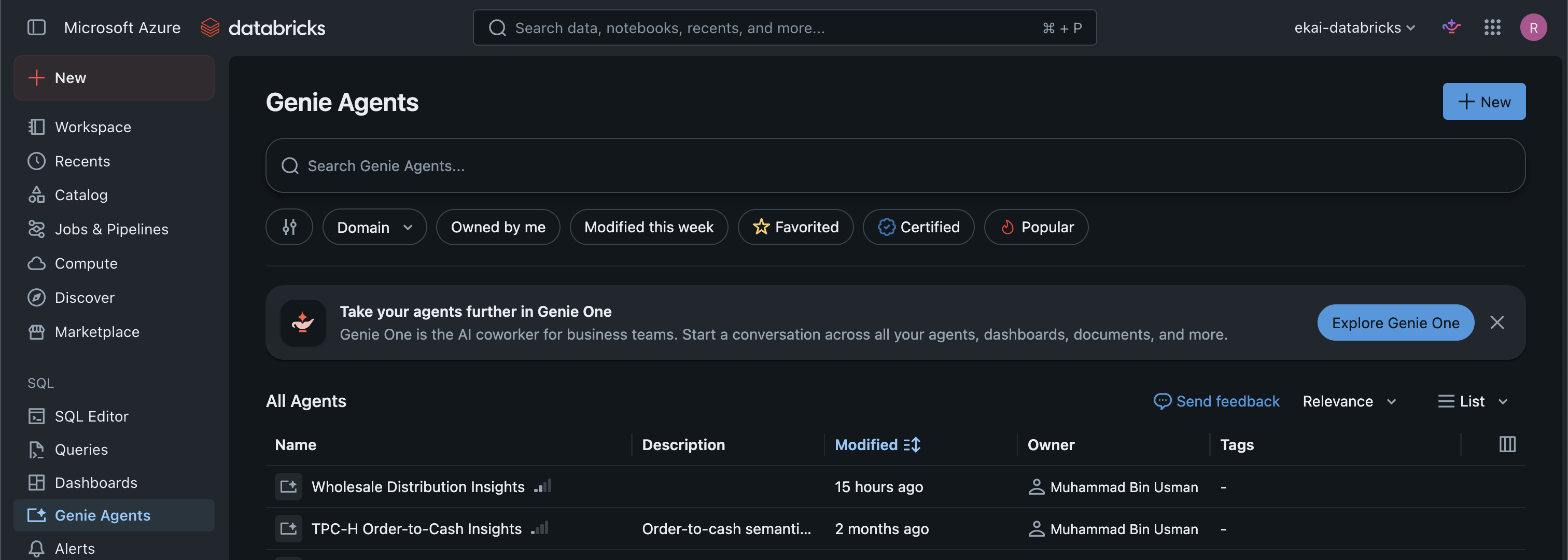
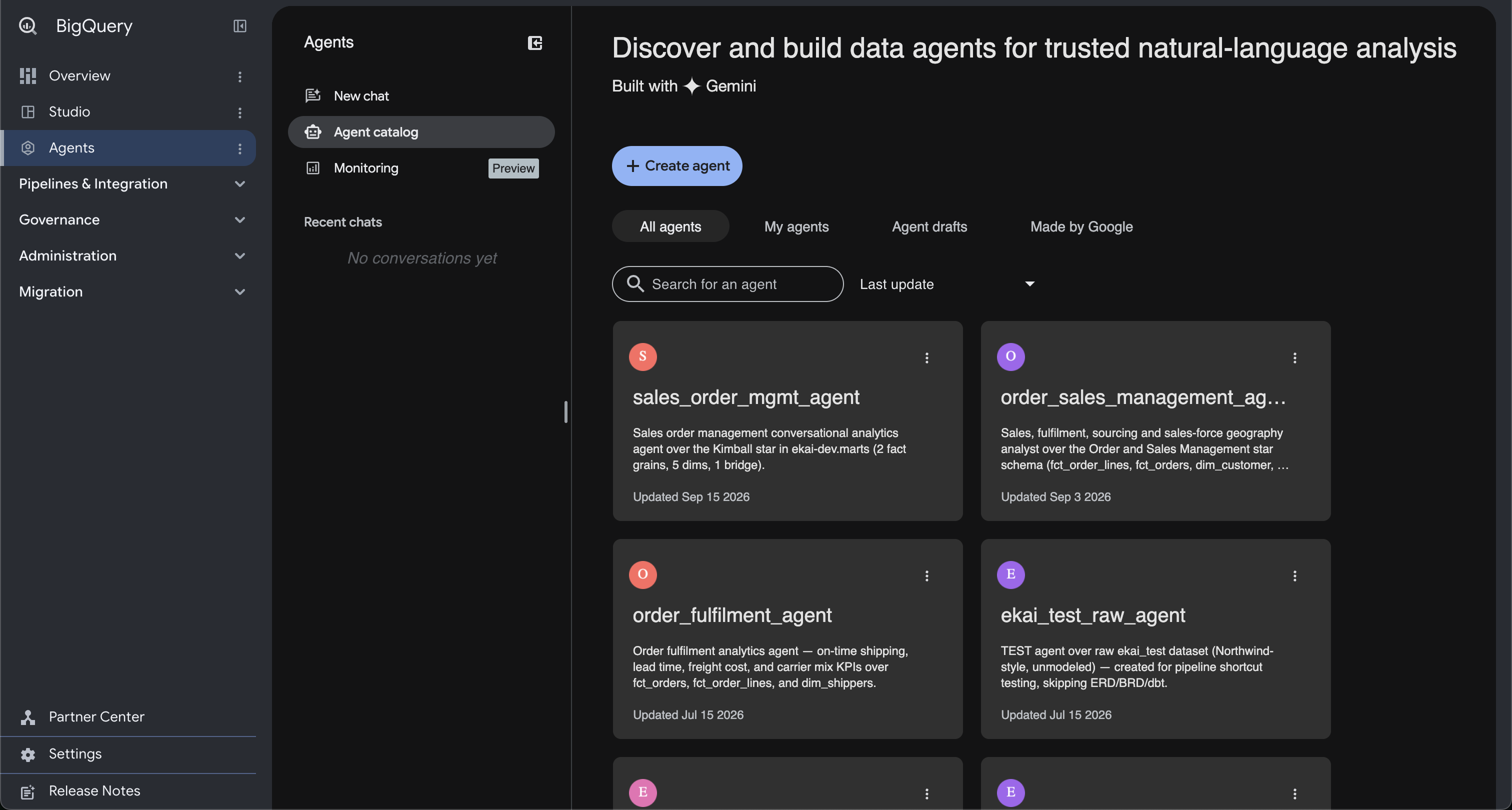
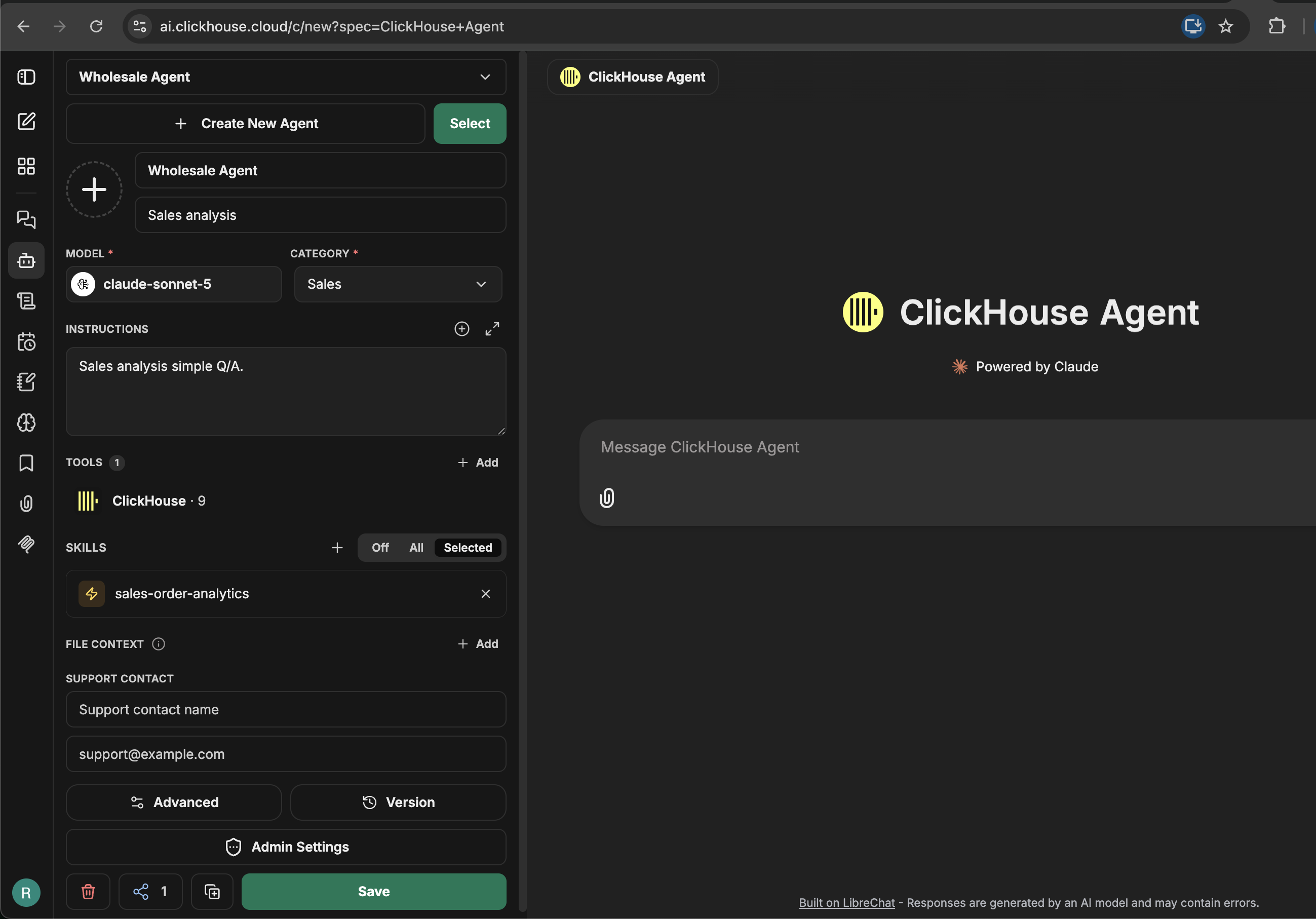
- Snowflake — Cortex / Intelligence chat
- Databricks — Genie workspace
- BigQuery — Data Agent in the console
- ClickHouse — Agent builder (attach skill if needed)
ClickHouse Agent publishing
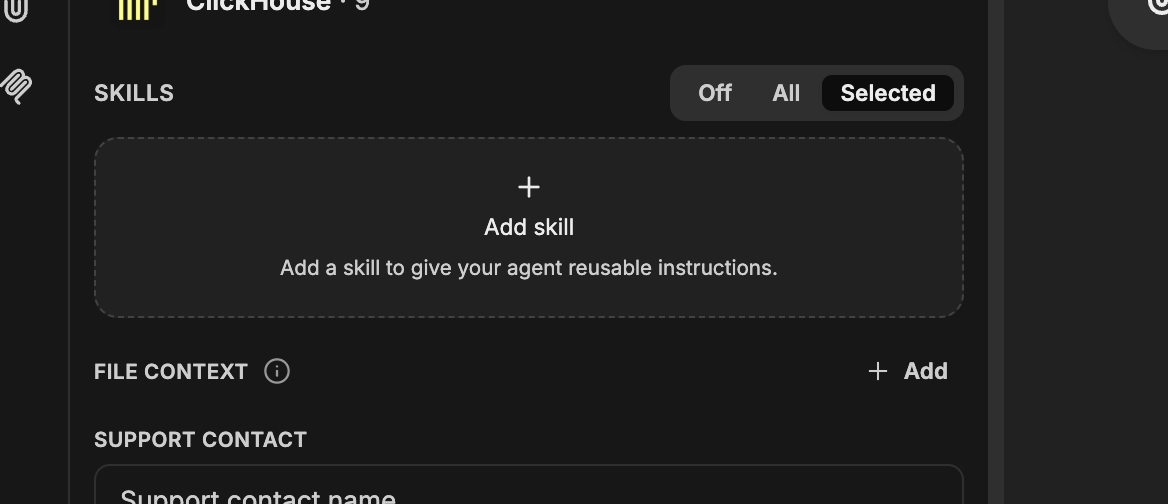
ClickHouse publishing transfers data-product artifacts from ekai to the connected ClickHouse account. ClickHouse does not expose automation APIs for agents today, so ekai also supplies a skills file. You wire that skill manually in the ClickHouse agent builder so the agent can run intelligent Q&A on the published semantic model.
Access uses the default credentials from connection creation (no separate publish-time auth prompts). There is no ClickHouse agent URL in ekai — open the agent from the ClickHouse UI after you attach the skill.
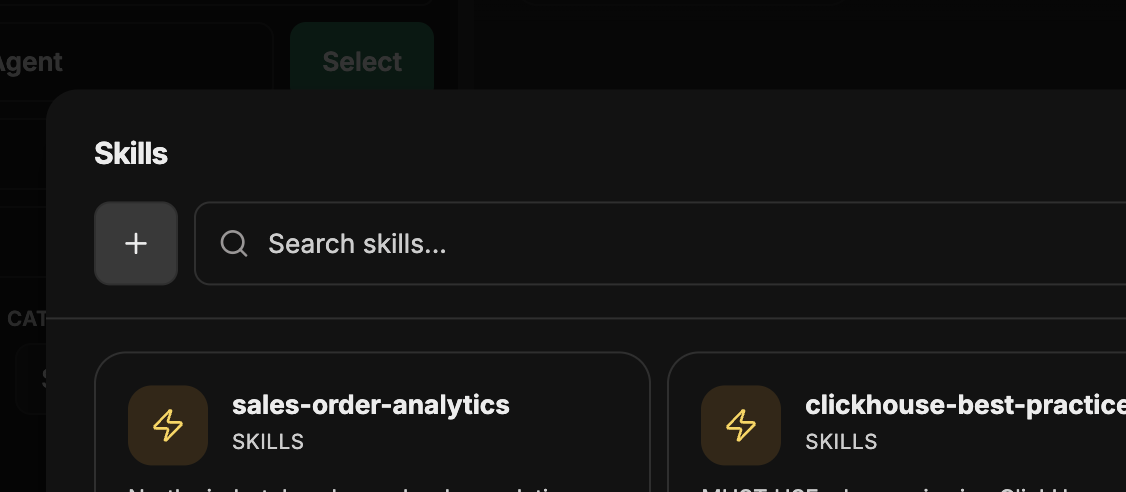
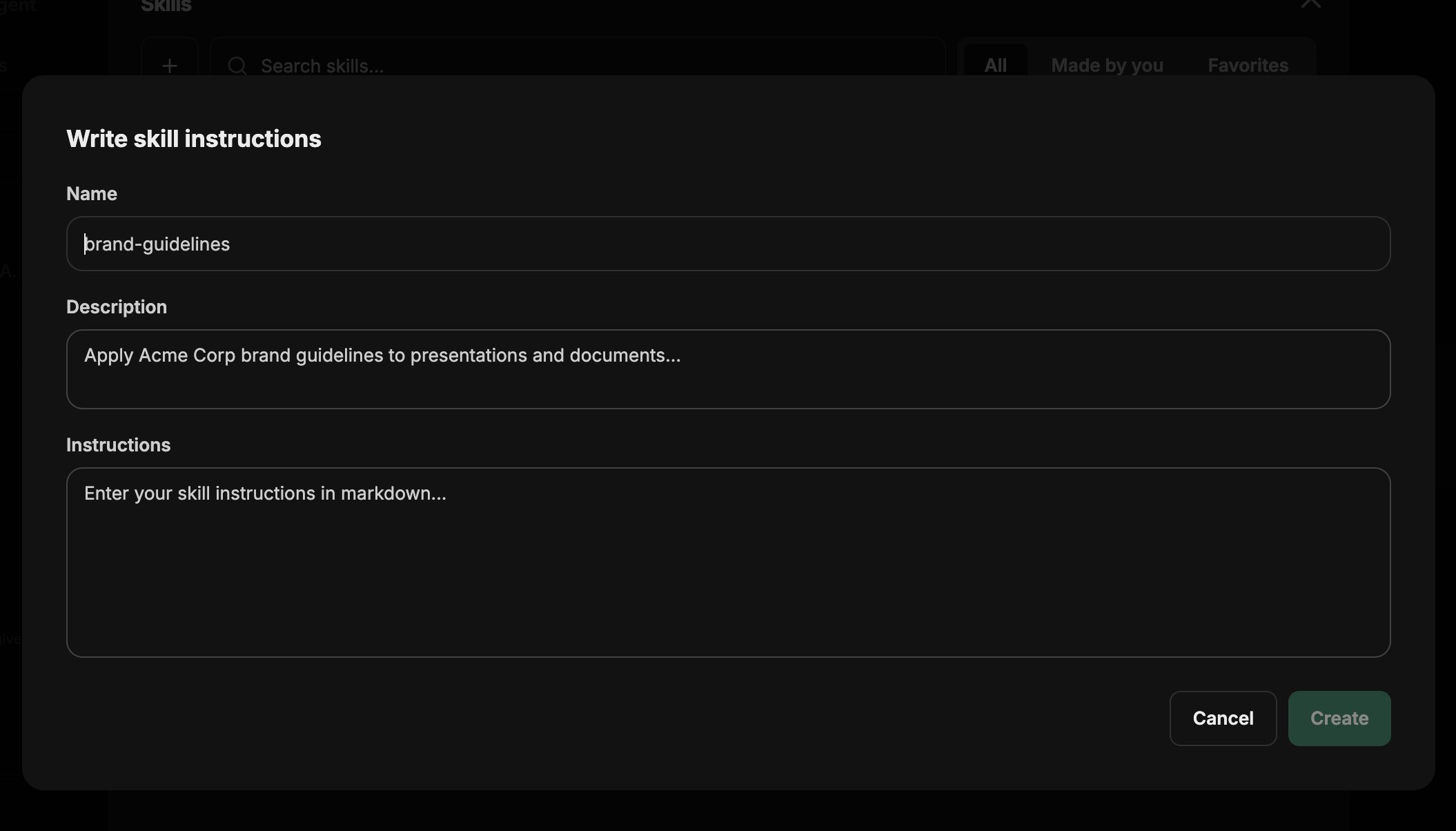
The skill file is created under Materializations. Initially no skill exists in ClickHouse — create a new skill and paste/add the content from ekai’s skill file.
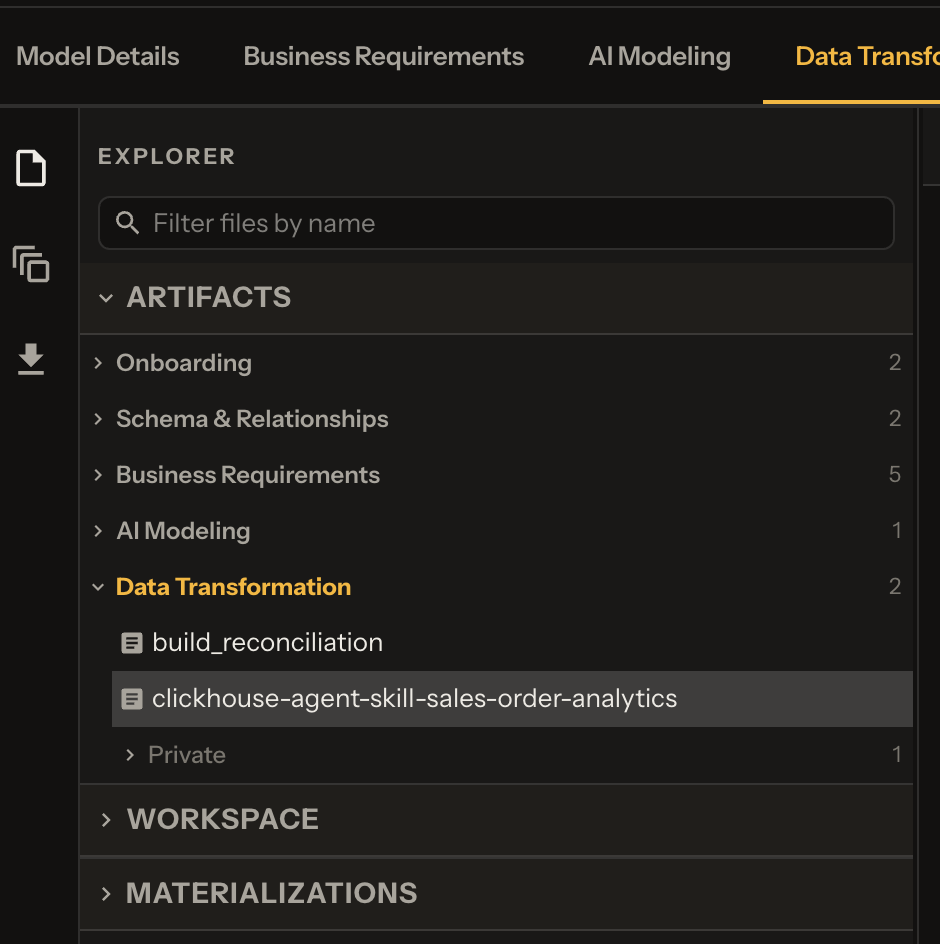
In the ClickHouse builder: open the agent view → Connect a skill → create a skill using ekai’s skill file.
Next Steps
- Code Sync — Push the dbt project to Git
- Execute DBT — Re-run materialization via chat
- Security & Privacy — Data protection details