User Management
ekai supports team collaboration with role-based access control. Manage users and permissions from the User Management section.
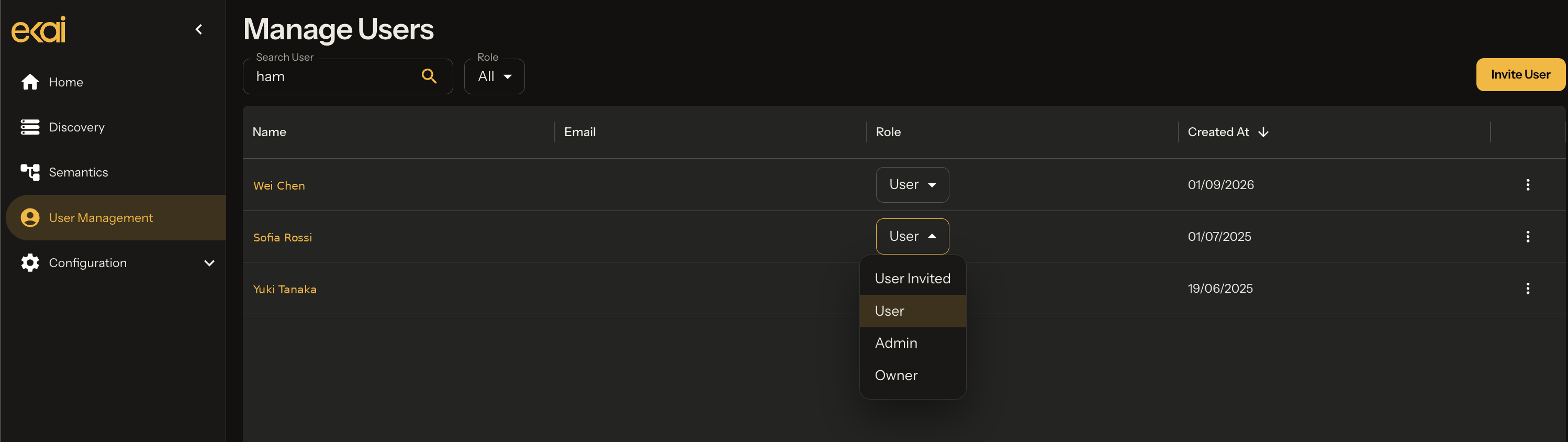
User Roles
ekai has three user roles with different permission levels:
Owner
Full platform access including billing and configuration.
- LLM Configuration access
- User management
- Billing and subscription
- All Schema Agent features
- All Semantic Model features
Admin
Full feature access without billing or LLM configuration.
- User management
- All Schema Agent features
- All Semantic Model features
- Create and manage connections
- Publish to destinations
User
Standard access for day-to-day work.
- Use existing connections
- Run Schema Agents
- Create Semantic Models
- View and download artifacts
- Collaborate on shared models
Permission Matrix
| Feature | Owner | Admin | User |
|---|---|---|---|
| LLM Configuration | ✅ | ❌ | ❌ |
| User Management | ✅ | ✅ | ❌ |
| Billing & Subscription | ✅ | ❌ | ❌ |
| Create Connections | ✅ | ✅ | ❌ |
| Use Connections | ✅ | ✅ | ✅ |
| Schema Agents | ✅ | ✅ | ✅ |
| Semantic Models | ✅ | ✅ | ✅ |
| Publish | ✅ | ✅ | ✅ |
| Share Assets | ✅ | ✅ | ✅ |
Managing Users
Invite New Users
- Navigate to User Management in the sidebar
- Click Invite User
- Enter the user's email address
- Select role: Admin or User
- Click Send Invitation
The invited user will receive an email with instructions to set up their account.
Change User Roles
- Navigate to User Management
- Find the user in the list
- Click the role dropdown
- Select new role
- Confirm the change
Remove Users
- Navigate to User Management
- Find the user in the list
- Click Remove
- Confirm removal
When removing a user, their owned assets (Schema Agents, Semantic Models) remain in the system. Reassign ownership before removal if needed.
Collaboration Features
Sharing Schema Agents
Each Schema Agent has an owner and can be shared with other users:
- Open the Schema Agent
- Click Share button in the header
- Select users to share with
- Click Save
Shared users can:
- View the connection and ERD
- Use the ERD for Semantic Models
- Cannot modify connection credentials
Sharing Semantic Models
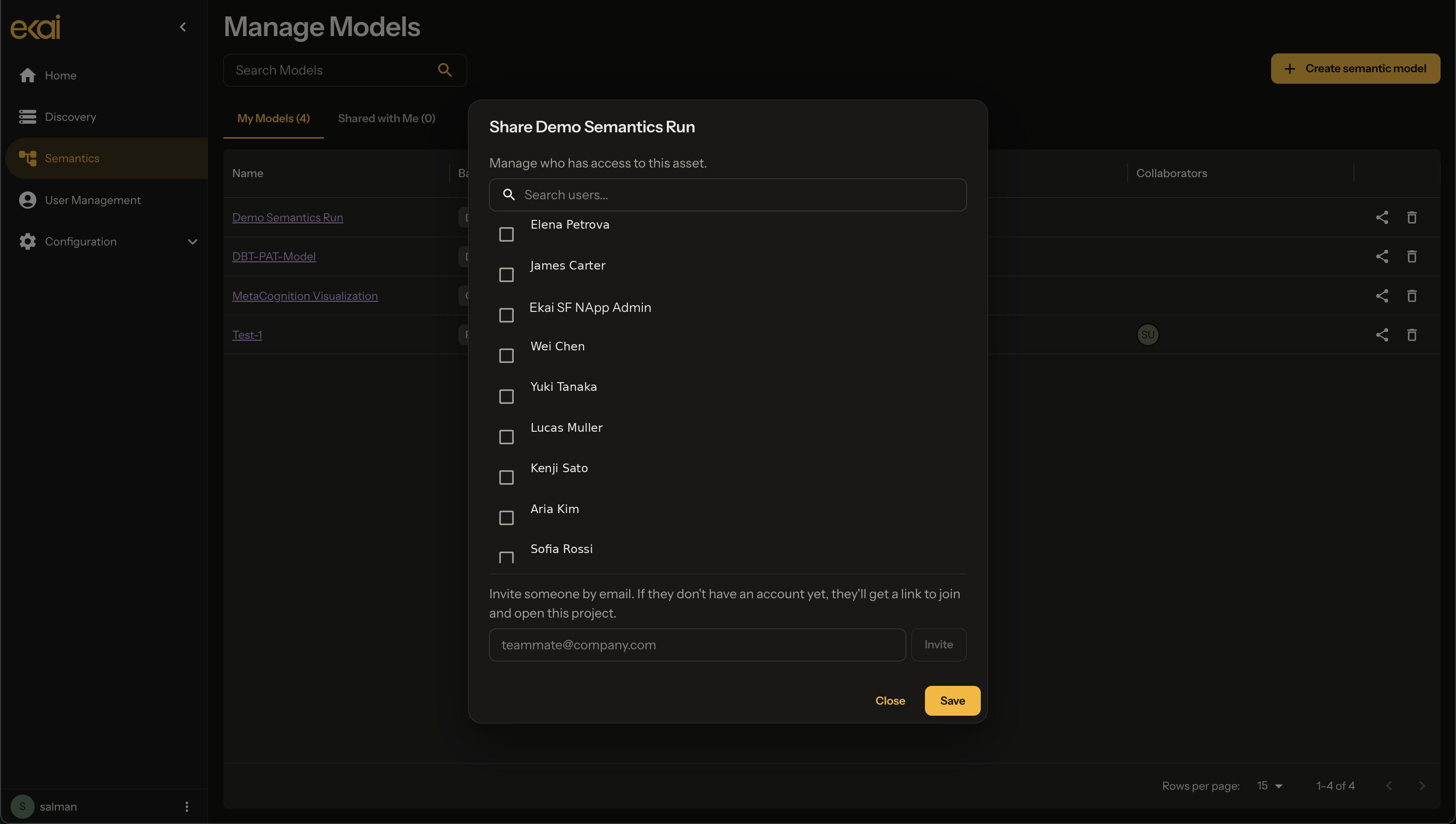
Semantic Models can be shared for team collaboration:
- Open the Semantic Model
- Click Share button
- Select team members from the list
- Click Save
Collaborators can:
- Participate in BRD interviews
- Review generated artifacts
- Run DBT executions
- Publish to destinations
Owner Indicators
Throughout the ekai interface, you'll see owner badges showing who owns each asset:
Best Practices
| Practice | Recommendation |
|---|---|
| Limit Owners | Only 1-2 owners per organization |
| Admin for leads | Use Admin role for team leads who manage connections |
| User for analysts | User role for analysts who create models |
| Share connections | Create connections as Admin, share with team |
| Document ownership | Keep track of who owns which assets |
Next Steps
- Schema Agents Overview - Start creating ERDs
- Semantic Models Overview - Build data products
- LLM Configuration - Configure AI providers (Owner only)